> For the complete documentation index, see [llms.txt](https://docs.aicrisk.com/llms.txt). Markdown versions of documentation pages are available by appending `.md` to page URLs; this page is available as [Markdown](https://docs.aicrisk.com/getting-started/adding-new-large-language-models/azure-foundry.md).
# Azure Foundry
Azure AI Foundry is Microsoft’s end-to-end platform for building, customizing, deploying, and managing AI applications on Azure. It provides a unified environment for working with foundation models, enterprise data, and production-ready AI tooling. The platform supports Azure OpenAI models such as GPT-4, GPT-4o, and GPT-3.5, enabling advanced generative AI use cases. It also includes Microsoft’s own models like Phi, optimized for efficiency and controllability. In addition, Azure AI Foundry supports leading open models including Llama and Mistral. Teams can compare, evaluate, and select models through a centralized model catalog. The platform enables retrieval-augmented generation (RAG) by securely grounding models in organizational data. Built-in evaluation, monitoring, and safety features help ensure responsible and reliable AI behavior. Azure AI Foundry integrates seamlessly with Azure services for identity, security, and compliance. It is designed to help organizations move from experimentation to scalable, governed AI deployment.
To set up an Azure Foundry deployment follow the steps from[ Microsoft Azure OpenAI services](https://learn.microsoft.com/en-us/azure/ai-services/openai/how-to/create-resource?pivots=web-portal). It is important to remember that Azure Foundry often has Beta mode and some features must be requested from Microsoft Azure support to unlock the full potential.
{% hint style="info" %}
Additionally pay attention to the region which you deploy as some features may not be available in certain regions. East US2 currently has the most availability and features along with ChatGPT 5, which allows for using azure search to query your data
{% endhint %}
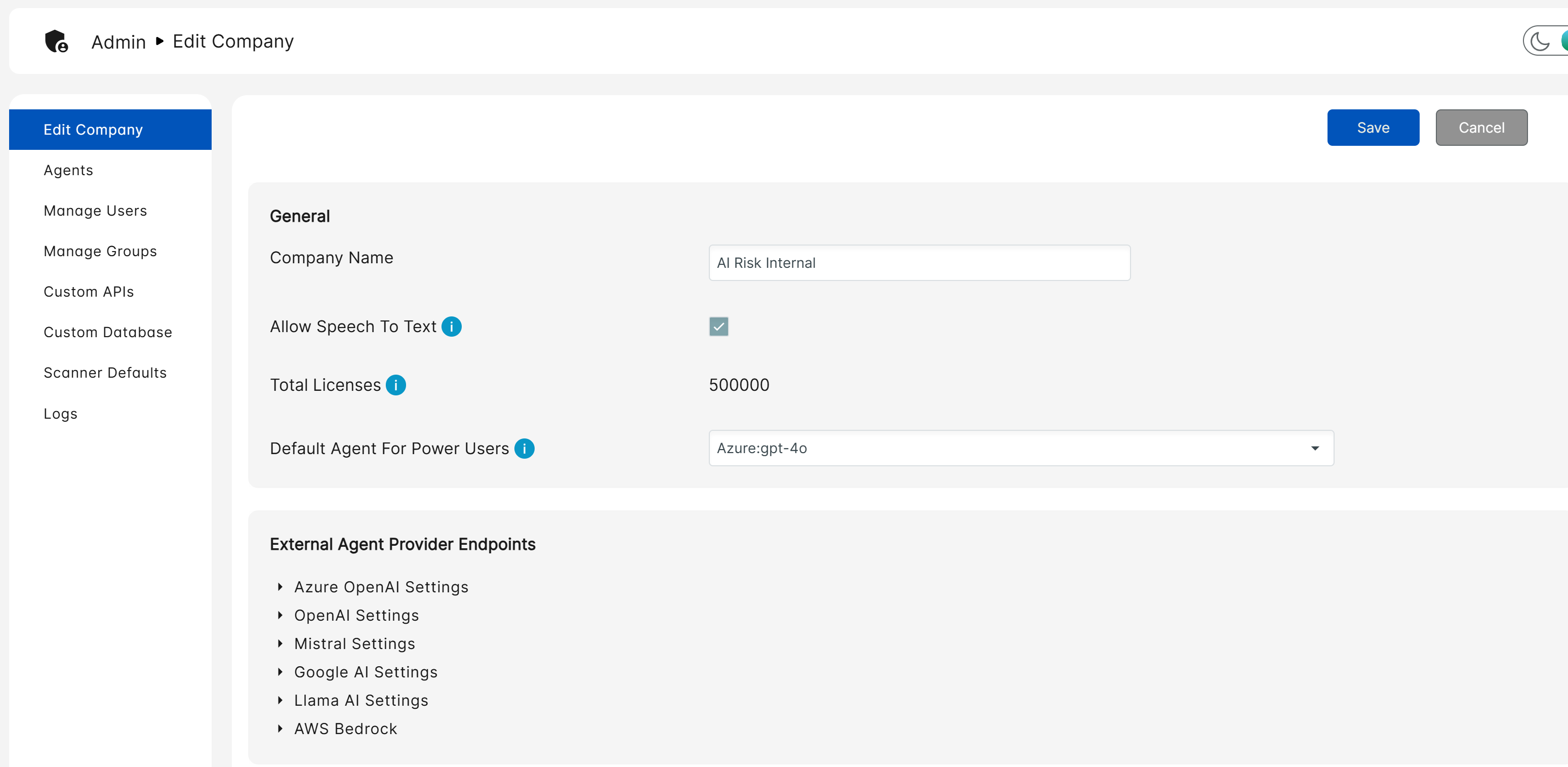
Once you have created an Azure Foundry services account and deployed your first model, we will need to grab three values to enter into our system. Navigate to your admin portal/
Navigate to the 'edit company' tab and click Add Azure Deployment under the Azure OpenAI settings.
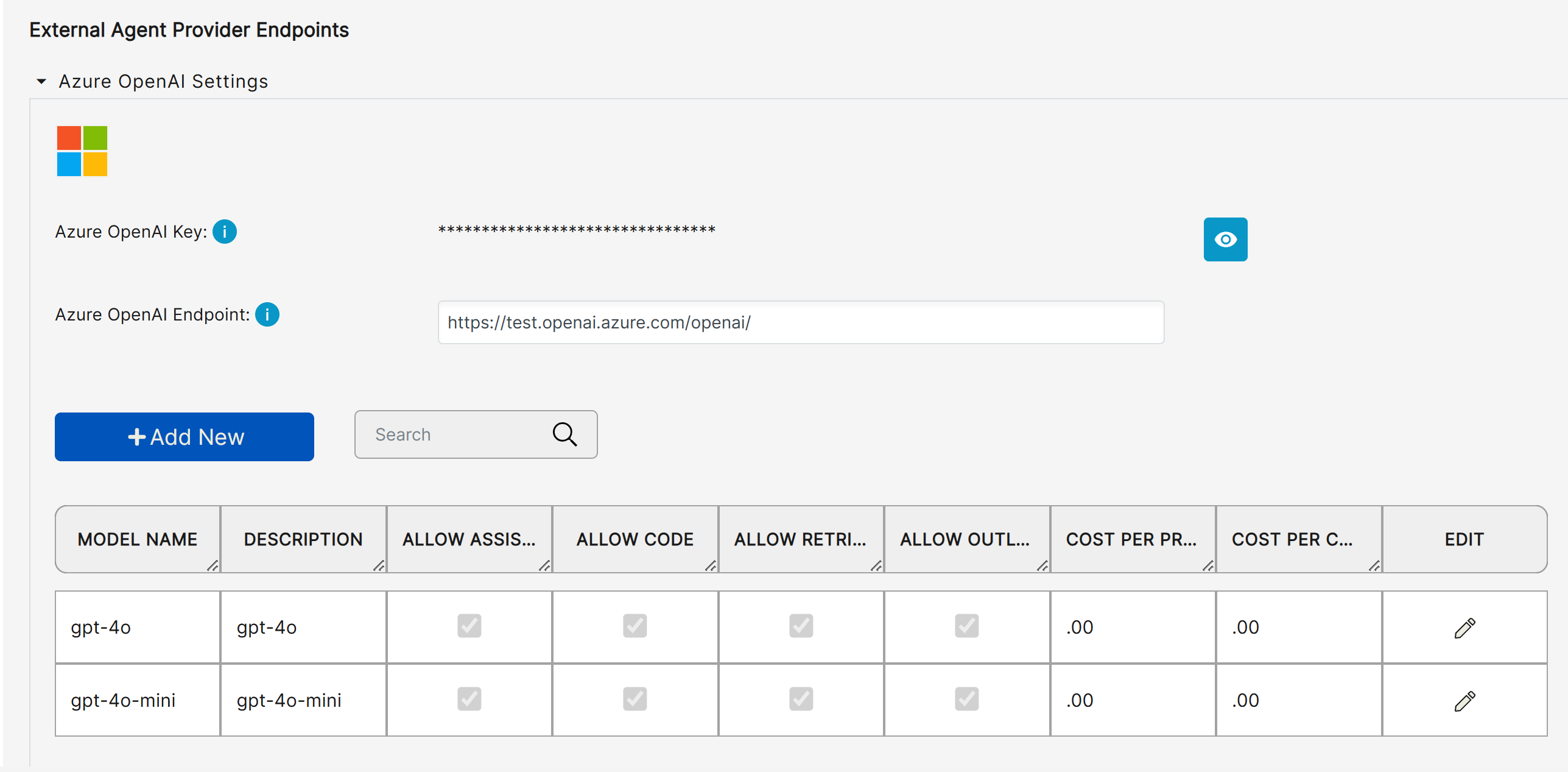
Here we will need to enter three values:
* [x] Your Azure OpenAI endpoint \[https\://\[SOMETHING].openai.azure.com/]
* [x] Your Azure OpenAI key
* [x] Your Azure OpenAI Deployment name
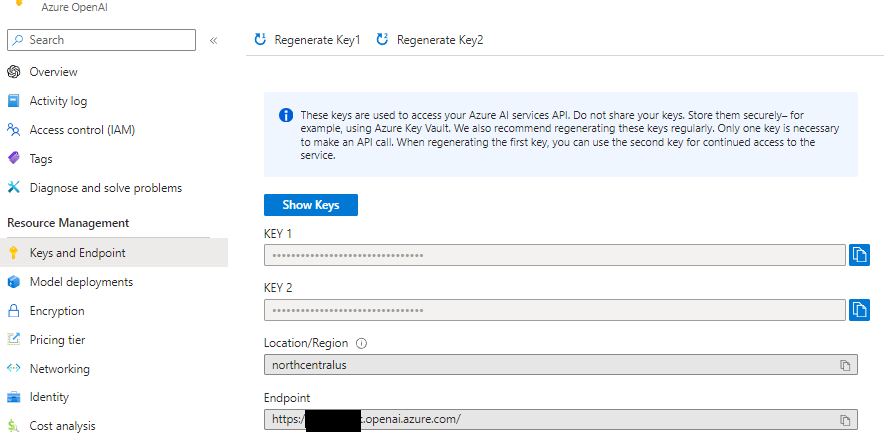
Your OpenAI Endpoint and Key can be found on the [azure portal](https://portal.azure.com/) under the Azure OpenAI service you created and Keys and Endpoints.
Copy and paste the API Key and Endpoint into the respective fields in the AIC Risk Admin Portal.
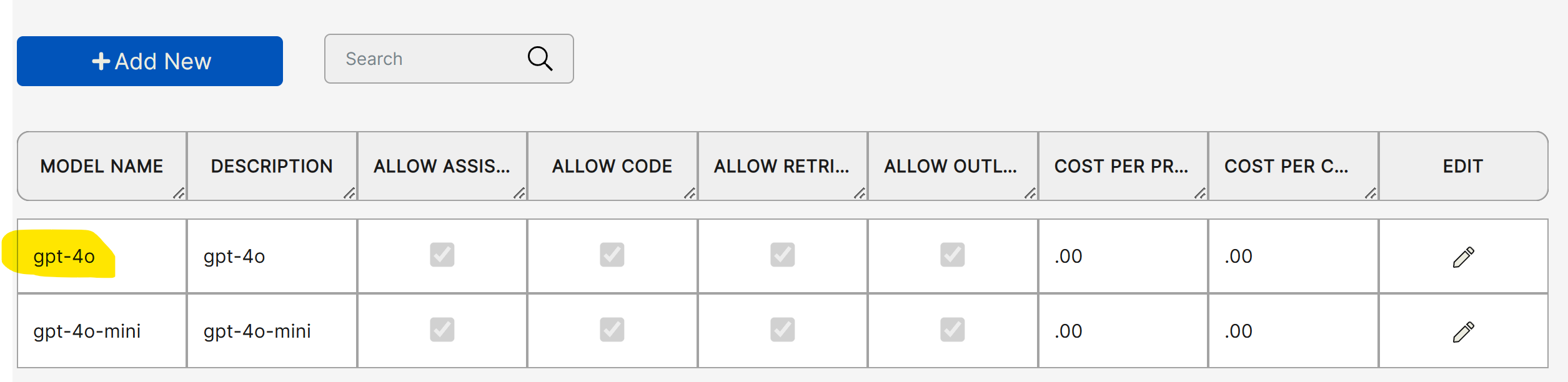
Next click the 'Add New' button and enter the name of the deployment you created.
This can be found in the [Azure AI Studio](https://oai.azure.com/portal/) under deployments as highlighted below.
### Azure Search
Azure search allows you to add a search query to your agent that can access your internal databases and documents. Azure AI search can not be used with assistant option and is only available when the option of assistant is unchecked on an agent.
To create an Azure AI search for your data follow the instructions on the Azure AI search documentation on getting started.
{% embed url="" %}
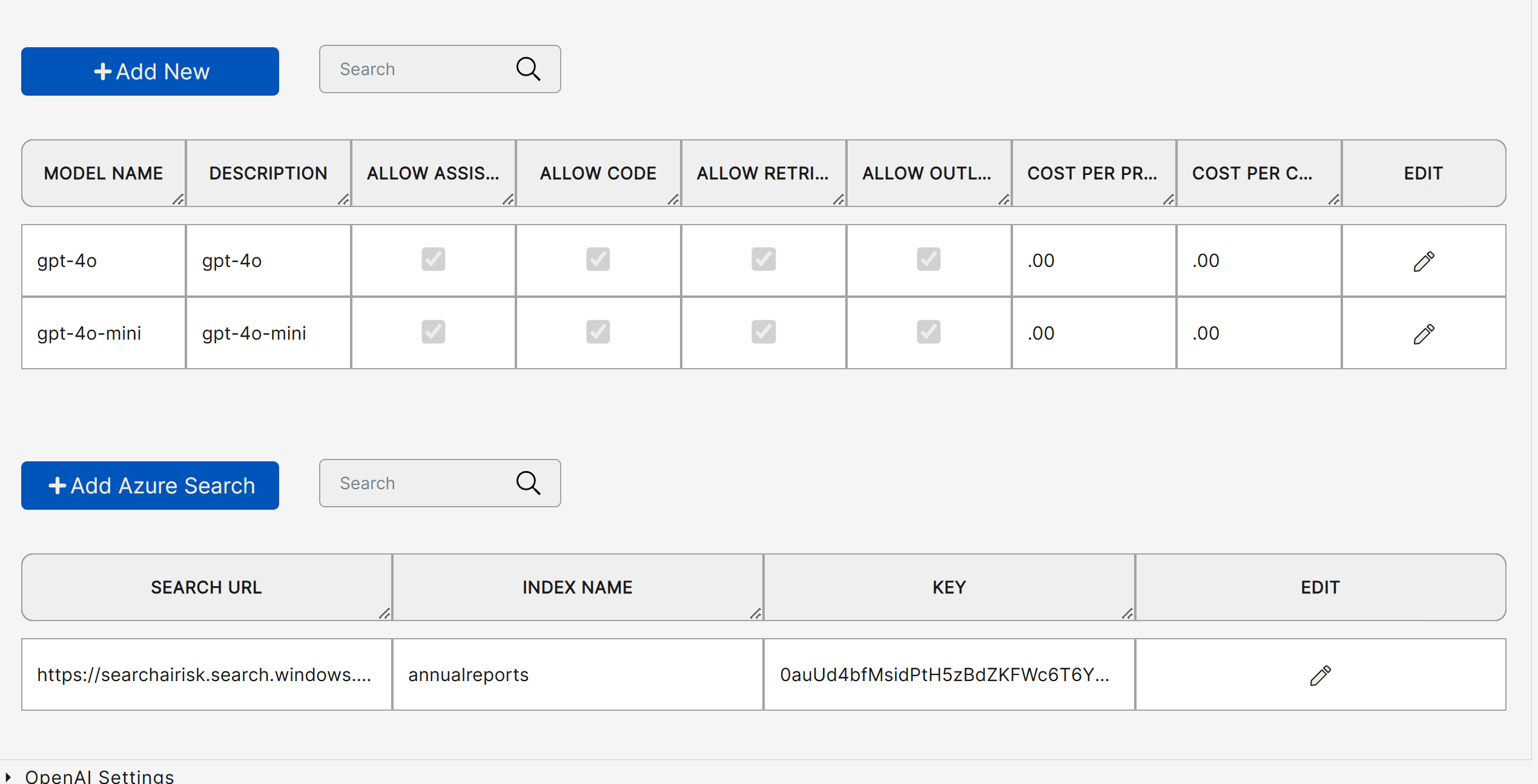
Once you have created a deployment for your model and added a search to your data through azure click 'Add Azure Search'.
You can add multiple searches but for each one we will need three values:
* Search Endpoint https\://{SOMETHING}.search.windows.net/
* Index Name (Found under Indexes on the search service you created)
* Endpoint Key (Found under Keys on the search service you created)