> For the complete documentation index, see [llms.txt](https://docs.aicrisk.com/llms.txt). Markdown versions of documentation pages are available by appending `.md` to page URLs; this page is available as [Markdown](https://docs.aicrisk.com/internal-deployment/sharepoint-grounding.md).
# Sharepoint Grounding
Allows Azure AI Foundry to connect to your sharepoint environrmnet
Quick permissions
Setup Instructions Permissions
### 1) Permissions required (least-privilege)
#### A. Non-negotiable constraint: SharePoint grounding is **user-auth only**
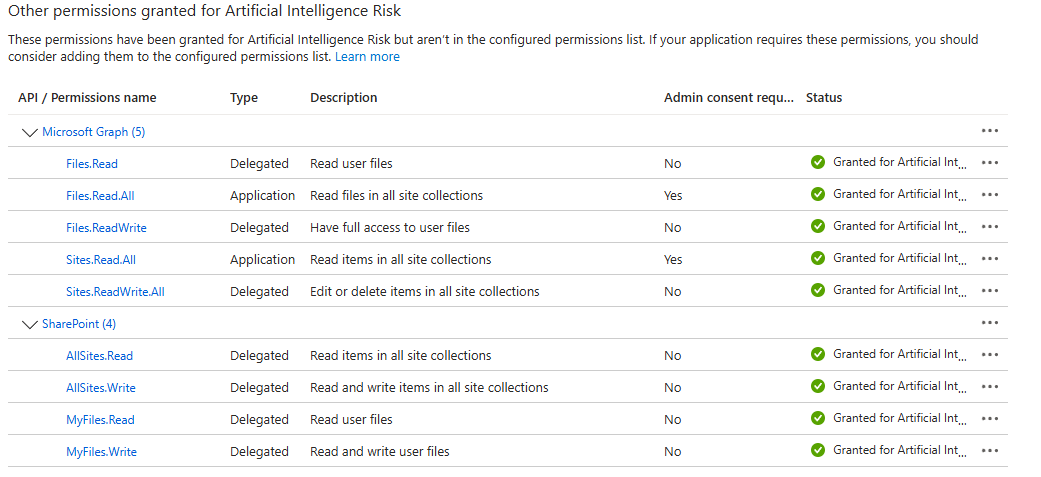
The SharePoint grounding tool **only supports user identity authentication**; **app-only / service principal auth is not supported**. `Files.Read.All` and `Sites.Read.All` **MUST BE ADDED TO YOUR APPLICATION PERMISIONS ONCE ADDED AN ADMIN IN THE ENVIRONMENT MUST LOGIN FIRST TO GIVE CONSENT FOR THE ORGAINIZATION**
**Implication for your application**
* If your app is a backend service, it must call Foundry **on behalf of the signed-in user** (identity passthrough / OBO style), not as an app-only daemon, for SharePoint grounding scenarios.
#### B. What the user needs in Microsoft 365 / SharePoint
At runtime, the user must:
* Have **permission to the SharePoint site/folder/files** you grounded to (SharePoint ACLs are respected via identity passthrough).
* Meet **Microsoft 365 Copilot Retrieval API** licensing requirements (Copilot add-on license *or* pay-as-you-go where supported).
> Note: The Retrieval API documentation calls out required permissions (`Files.Read.All` and `Sites.Read.All`) for retrieving SharePoint content via the Retrieval API.\
> In Foundry’s SharePoint grounding, Microsoft handles the Retrieval API call path, but the *effective access* is still governed by the user’s SharePoint permissions and the capability’s licensing requirements.
#### C. What your “application identity” needs in Azure AI Foundry (RBAC)
There are two separate needs:
**1) Use an existing SharePoint connection (run agents / responses)**
For day-to-day usage (data plane), assign your calling principal (user or workload identity) a Foundry role intended for “build agents with pre-deployed models,” such as **Azure AI User** at the **Foundry project scope**.
**2) Create the SharePoint connection (deployment time)**
Creating connections is a **control plane** operation in Foundry.\
So the principal doing setup needs a role that grants control plane permission to create project connections (commonly roles like **Azure AI Project Manager / Azure AI Account Owner / Owner/Contributor**, depending on your org’s setup).
***
### 2) SharePoint grounding allowed key
The first step in deploying sharepoint grounding is to allow the environment the ability to get the token correctly. Create a new Key in the azure keyvaults or secrets named SharepointEnabled with the value set to true.
"SharepointEnabled": true
Or
Azure Key Value
SharepointEnabled true
***
### 3) How to get the Connection ID (and its exact format)
#### 
#### When creating the agent we need a connection name which is the name of the resource.
#### A. Required Connection Name
We need to get the connection name from azure ai foundry after it is deployed and place it into the agent.
#### B. Required Resource Group
THis is the resource group your current azure ai foundry project is located in.
####