> For the complete documentation index, see [llms.txt](https://docs.aicrisk.com/llms.txt). Markdown versions of documentation pages are available by appending `.md` to page URLs; this page is available as [Markdown](https://docs.aicrisk.com/admin/groups/adding-an-agent.md).
# Adding an Agent
This section provides step-by-step instructions for adding an agent to a group within the admin panel.
**Adding an Agent to a Group:**
To add an agent to a group in our application, follow these steps:
1. **Accessing the Group Edit Panel:**
* Log in to the admin panel using your credentials.
* Navigate to the "Manage Groups" tab in the menu bar.
* Click on the group to which you want to add an agent. This action opens the group edit panel.
2. **Navigating to the Agents Section:**
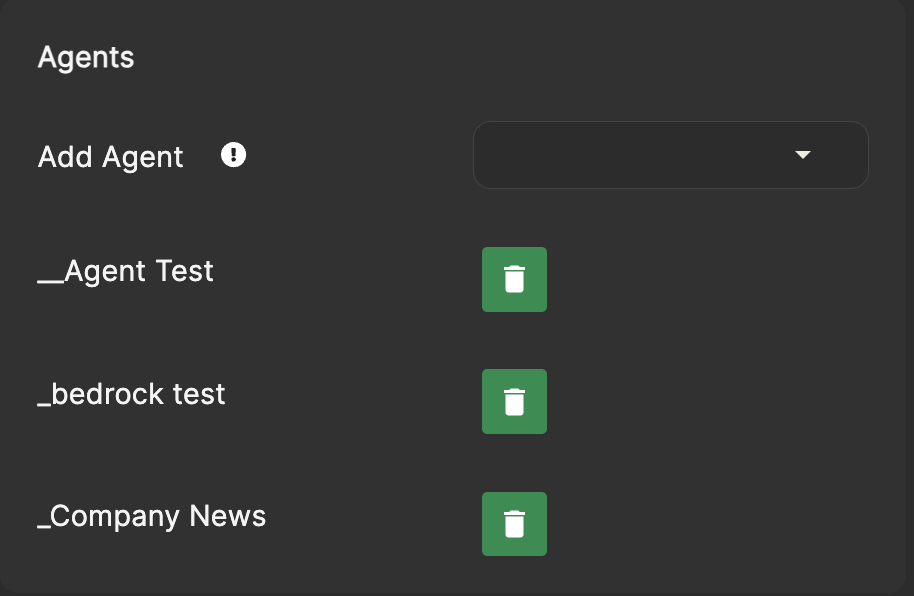
* Scroll down within the group edit panel to find the "Agents" section.
* This section displays the agents currently assigned to the group.
3. **Identifying the Agent to Add:**
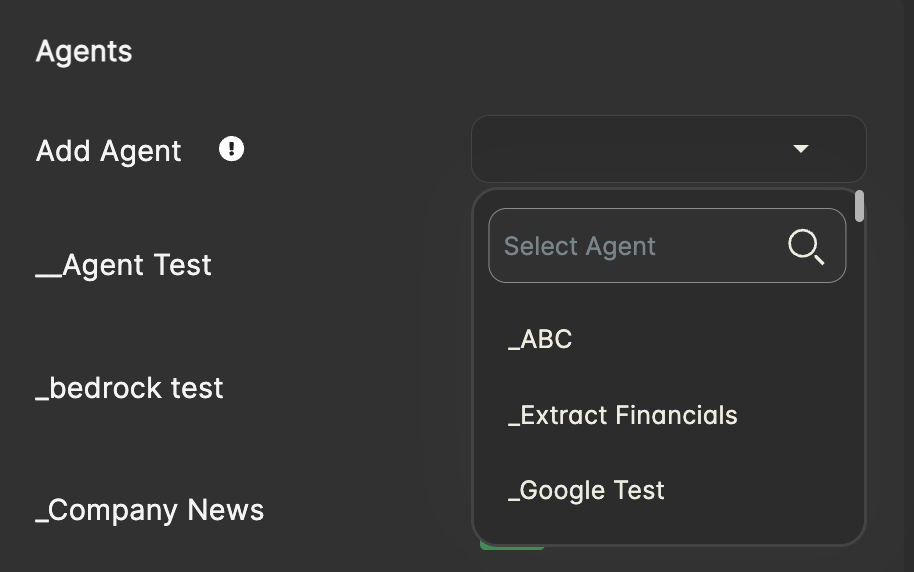
* In the "Agents" section, locate the agent you wish to add to the group in the dropdown menu.
4. **Initiating Agent Addition:**
* In the "Agents" section, you will find an option to add an agent to the group.
* Click on the dropdown menu provided to select the agent you want to add.
5. **Confirming Agent Addition:**
* After selecting the agent, ensure that the correct agent is displayed in the list of agents within the 'Agents' section.
* Review the selection to verify accuracy.
6. **Finalizing Agent Addition:**
* Once you have ensured the agent has been added to the group, click save and exit the group editing panel to save the changes.
* The agent is now added to the group.
**Note:** Adding an agent to a group allows the group's users to access it. Ensure that you assign agents to groups based on their roles and responsibilities within the organization.
#### Additional Information:
* **Company Admin Privileges**: Please note that only users with company admin privileges can access the admin panel and manage groups.